

How to Connect Supabase with Prisma ORM in Next.js
Step by step guide to connecting Supabase PostgreSQL to a Next.js project using Prisma ORM - schema setup, migrations, seeding, and Prisma Studio.
If you are building a Next.js project and you need a database, Supabase and Prisma together is one of the cleanest setups you can go with. Supabase gives you a hosted PostgreSQL database with a solid dashboard. Prisma gives you a type-safe ORM that makes querying that database feel natural in TypeScript.
This blog walks you through the entire setup - from creating a Supabase project to seeding your database with data. We will keep it practical and move step by step.
If you want to understand how Next.js itself works before diving into the database layer, check out the
React vs Next.js blog and the SSR, CSR, SSG, and ISR blog on codekk.dev first.What We Are Building
By the end of this blog you will have:
A Supabase PostgreSQL database connected to your Next.js project
Prisma set up as your ORM with a working schema
Two database models - User and Post - migrated and ready
Seed data inserted into your database
A way to browse your data using Prisma Studio
Let's get into it.
Step 1 - Create a Supabase Account and Project
Before anything else, head to
supabase.com and create a free account if you do not have one already.Once you are in, click the Create a new project button.
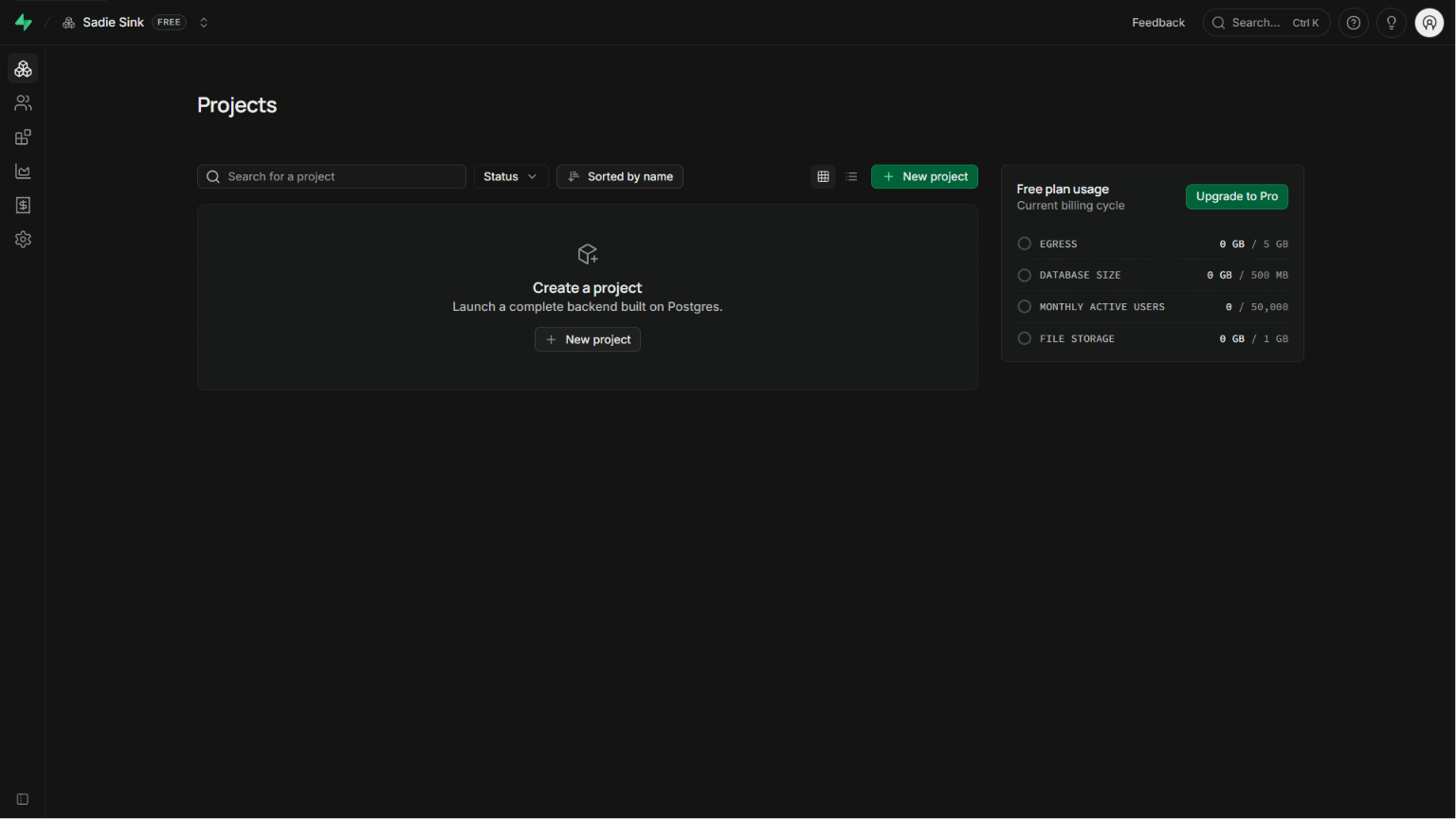
You will see a project creation screen where you need to fill in your project name, set a database password, and choose a region.
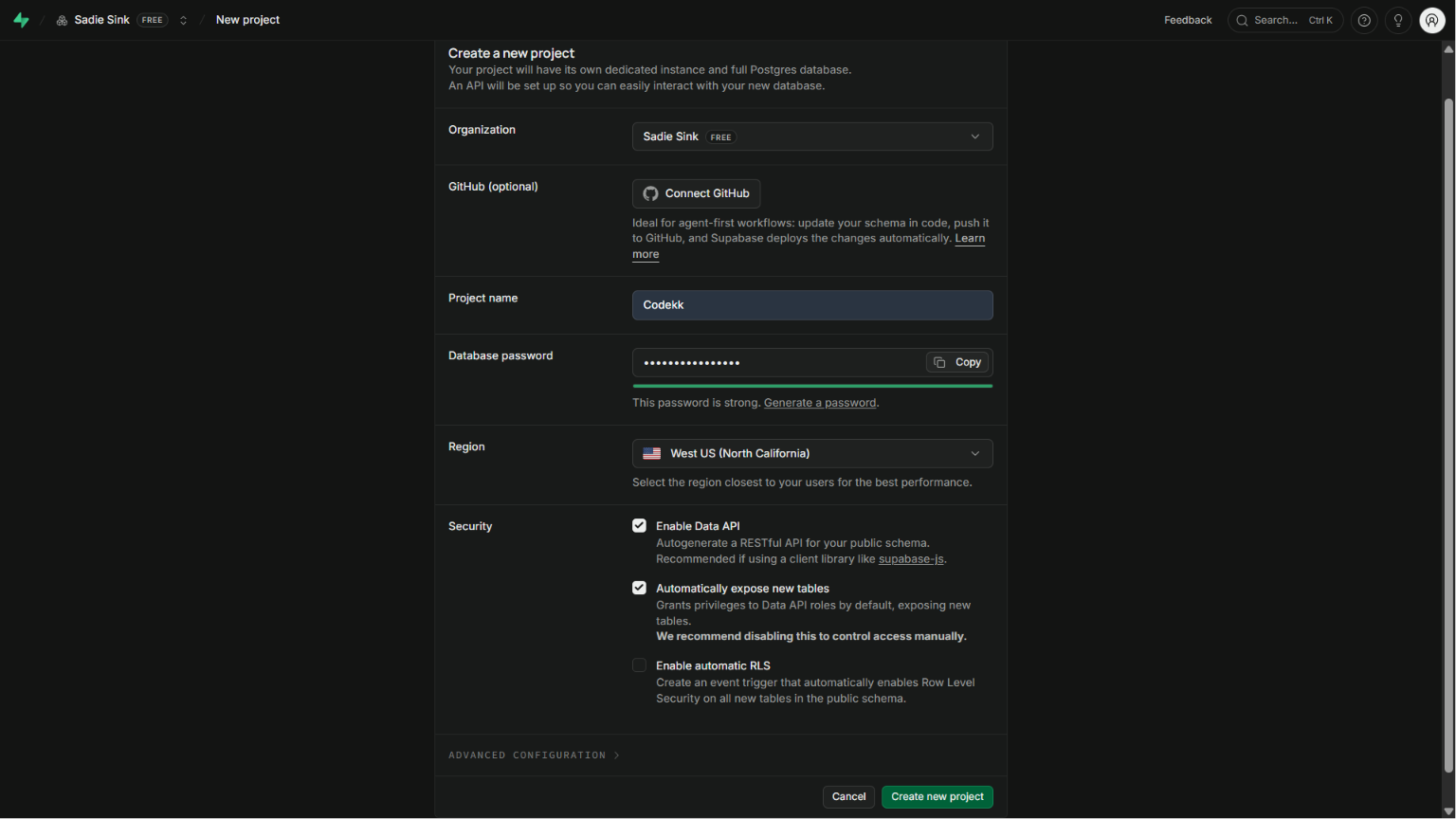
Two things to remember here:
Region - select the region closest to where your users or your server will be. This keeps latency low.
Database password - copy this immediately and paste it somewhere safe like a notes app or password manager. You will need it in a later step and Supabase will not show it to you again after this screen.
Once your project is created, click the Connect button in the project dashboard.
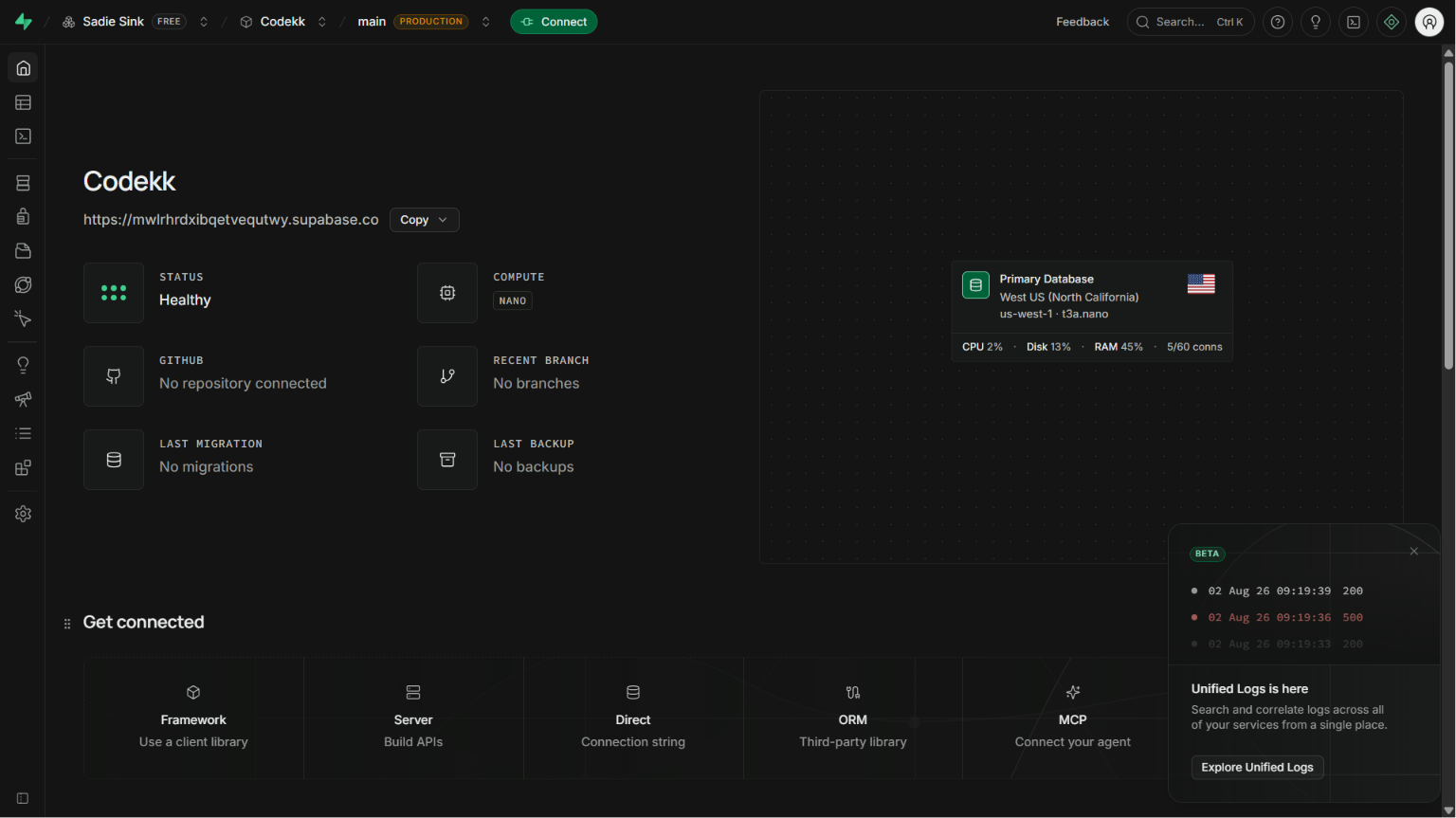
You will see several connection options. Select ORM from the tabs. Supabase will then show you two ORM options - Prisma and Drizzle. Select Prisma.
You will see two connection strings here - DATABASE_URL and DIRECT_URL. Keep this tab open. You will need to copy these in a later step.
Step 2 - Set Up Your Next.js Project
If you do not have a Next.js project yet, create one:
npx create-next-app@latest my-app
cd my-app
Choose TypeScript when prompted - Prisma works best with TypeScript and the type safety it provides is one of the main reasons to use it.
If you want a refresher on Next.js project structure and how the App Router works, the
SSR, CSR, SSG, and ISR blog covers it in detail.Step 3 - Install Prisma and Dependencies
From your project root, run these four commands:
npm install prisma --save-dev
npm install @prisma/client
npm install @prisma/adapter-pg pg dotenv
npm install --save-dev @types/pg
Here is what each one does:
prisma - the Prisma CLI, installed as a dev dependency because you only use it during development for migrations and schema changes, not in production runtime.
@prisma/client - the actual Prisma client that your application code uses to query the database. This one goes into production.
@prisma/adapter-pg and pg - Prisma uses adapters to talk to different databases. Since Supabase is PostgreSQL, we need the pg adapter. pg is the underlying PostgreSQL client for Node.js.
dotenv - loads your .env file so Prisma can read your database connection strings from environment variables.
@types/pg - TypeScript type definitions for the pg package.
Step 4 - Initialize Prisma
Now initialize Prisma in your project:
npx prisma init
[IMAGE: Terminal output after running npx prisma init - showing the files created]
This command creates three things in your project:
prisma/schema.prisma- where you define your database modelsprisma.config.ts- Prisma configuration file.env- environment variables file (if it does not exist already)
Step 5 - Add Your Database Connection Strings
Open your .env file. You will see a DATABASE_URL placeholder already there. Remove everything in the file and replace it with the two connection strings from Supabase.
Go back to your Supabase tab where you selected Prisma as your ORM. Copy both DATABASE_URL and DIRECT_URL from there.
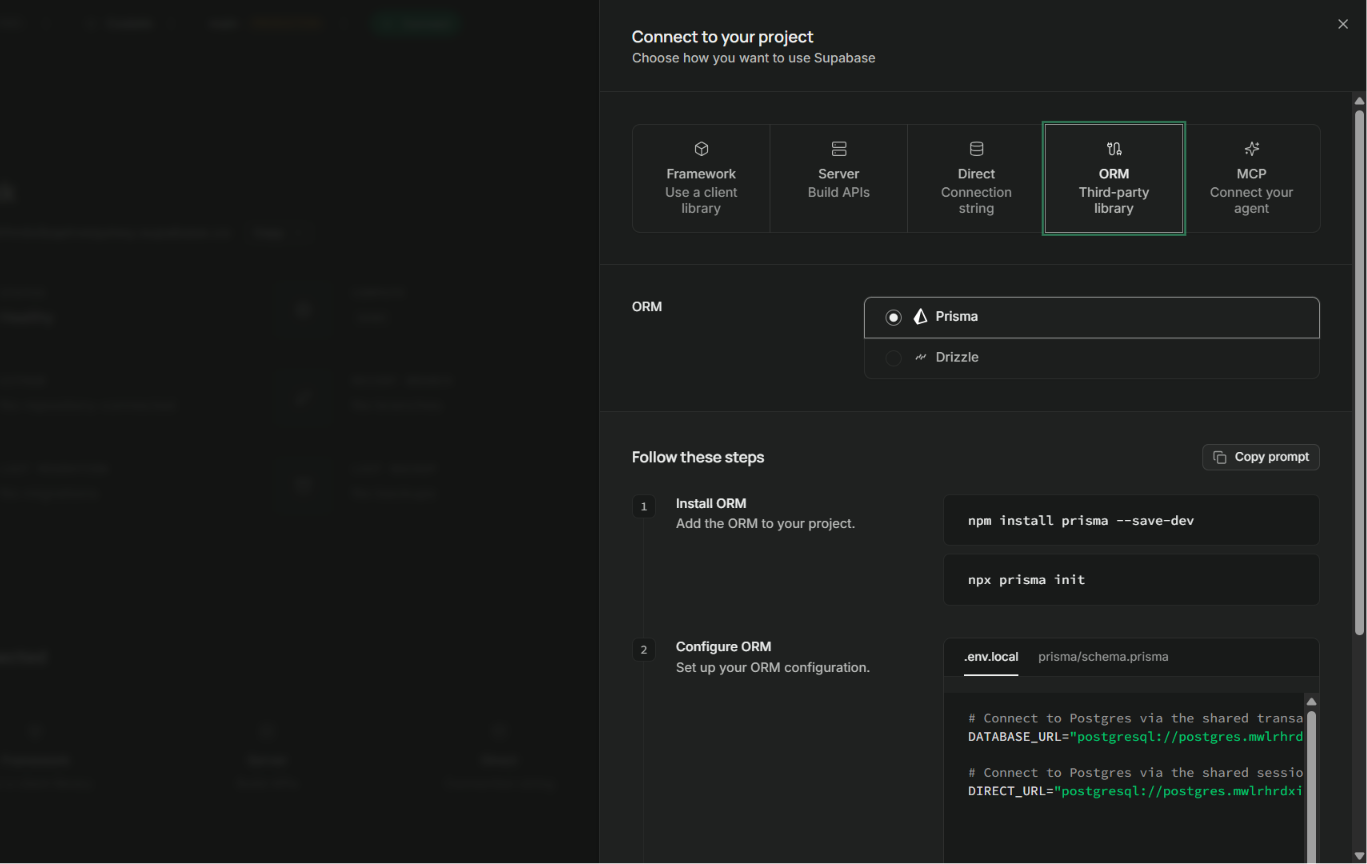
Paste both into your .env file:
DATABASE_URL="your-database-url-from-supabase"
DIRECT_URL="your-direct-url-from-supabase"
Now replace the [YOUR-PASSWORD] placeholder in both URLs with the database password you saved when creating the project.
Why two URLs? Supabase uses a connection pooler by default which is efficient for production traffic but does not support all Prisma features like migrations. DATABASE_URL points to the pooled connection - used by your application at runtime. DIRECT_URL points directly to the database - used by Prisma for migrations and seeding.
Step 6 - Configure prisma.config.ts
Open the prisma.config.ts file that Prisma generated. Update it to use DIRECT_URL for the datasource:
import "dotenv/config";
import { defineConfig } from "prisma/config";

export default defineConfig({
  schema: "prisma/schema.prisma",
  migrations: {
    path: "prisma/migrations",
  },
  datasource: {
    url: process.env["DIRECT_URL"], // Use DIRECT_URL for direct connection to the database
  },
});
We are using DIRECT_URL here because prisma.config.ts is used for migrations - operations that need a direct connection, not a pooled one.
Step 7 - Define Your Database Schema
Open prisma/schema.prisma. This is where you define what your database tables look like. Prisma calls them models.
Replace the contents with this schema:
generator client {
  provider        = "prisma-client-js"
  output          = "../app/generated/prisma/client"
}

datasource db {
  provider  = "postgresql"
  url       = env("DATABASE_URL")
  directUrl = env("DIRECT_URL")
}

model User {
  id    Int     @id @default(autoincrement())
  email String  @unique
  name  String?
  posts Post[]
}

model Post {
  id        Int     @id @default(autoincrement())
  title     String
  content   String?
  published Boolean @default(false)
  authorId  Int
  author    User    @relation(fields: [authorId], references: [id])
}
Here is what each part means:
generator client - tells Prisma to generate a TypeScript client. The output path is where the generated client files will go - in this case inside your app/generated/prisma/client folder.
datasource db - tells Prisma it is talking to a PostgreSQL database and where to find the connection strings.
model User - creates a users table with:
id- auto-incrementing integer, set as the primary keyemail- required unique stringname- optional string (the?means nullable)posts- a relation field showing this user can have many posts (does not create a column - it is just for Prisma's query API)
model Post - creates a posts table with:
id- auto-incrementing primary keytitle- required stringcontent- optional stringpublished- boolean defaulting to falseauthorId- the foreign key linking to the User tableauthor- the relation definition telling Prisma how the tables connect
This is a classic one-to-many relationship - one user can have many posts. Prisma handles the JOIN logic for you when you query.
Step 8 - Run Your First Migration
Now push this schema to your Supabase database by running:
npx prisma migrate dev
Prisma will ask you to name this migration. Give it something descriptive like init or create-users-and-posts.
This command does three things:
Compares your schema to the current state of the database
Generates a SQL migration file inside
prisma/migrationsRuns that migration against your database
After it finishes, your users and posts tables exist in Supabase. You can open your Supabase dashboard and see them under the Table Editor.
It also generates the Prisma client code in app/generated/prisma/client based on your schema, so your TypeScript code gets full type safety when querying.
Step 9 - Seed Your Database
Seeding means inserting some initial data into your database. Prisma has built-in support for this.
Create a new file at prisma/seed.ts and paste this code:
import { PrismaClient, Prisma } from "../app/generated/prisma/client";
import { PrismaPg } from "@prisma/adapter-pg";
import "dotenv/config";

const adapter = new PrismaPg({
  connectionString: process.env.DATABASE_URL,
});

const prisma = new PrismaClient({
  adapter,
});

const userData: Prisma.UserCreateInput[] = [
  {
    name: "Sadie Sink",
    email: "ssadie0416@gmail.com",
    posts: {
      create: [
        {
          title: "Join the Prisma Discord",
          content: "https://pris.ly/discord",
          published: true,
        },
        {
          title: "Prisma on YouTube",
          content: "https://pris.ly/youtube",
        },
      ],
    },
  },
  {
    name: "Prince Vishwakarma",
    email: "prince.pv.14.2000@gmail.com",
    posts: {
      create: [
        {
          title: "Follow Prisma on Twitter",
          content: "https://www.twitter.com/prisma",
          published: true,
        },
      ],
    },
  },
];

export async function main() {
  for (const u of userData) {
    await prisma.user.create({ data: u });
  }
}

main();
A few things worth understanding here:
PrismaPg adapter - we initialize Prisma with the pg adapter and pass the DATABASE_URL (pooled connection) for seeding since it is a runtime operation, not a migration.
userData array - each object in this array is one user with their associated posts nested inside. Prisma's create API lets you create related records in a single call - no need to insert the user first, get their ID, then insert posts separately.
Prisma.UserCreateInput - this is a TypeScript type generated by Prisma based on your schema. It ensures your seed data matches exactly what the database expects.
Step 10 - Add Seed Script to prisma.config.ts
Now tell Prisma where to find the seed script. Open prisma.config.ts and add the seed line:
import "dotenv/config";
import { defineConfig } from "prisma/config";

export default defineConfig({
  schema: "prisma/schema.prisma",
  migrations: {
    path: "prisma/migrations",
    seed: `tsx prisma/seed.ts`, // add this line to run the seed script
  },
  datasource: {
    url: process.env["DIRECT_URL"],
  },
});
Before running the seed, install tsx - a tool that lets Node.js run TypeScript files directly without compiling them first:
npm install --save-dev tsx
If you skip installing tsx and try to run the seed, you will get an error because Node.js cannot run .ts files directly by default.
Now run the seed:
npx prisma db seed
Step 11 - Verify Your Data
You have two ways to check that everything worked.
Option 1 - Check Supabase Dashboard
Open your Supabase project and go to the Table Editor. You should see your users and posts tables with the seed data inside them.
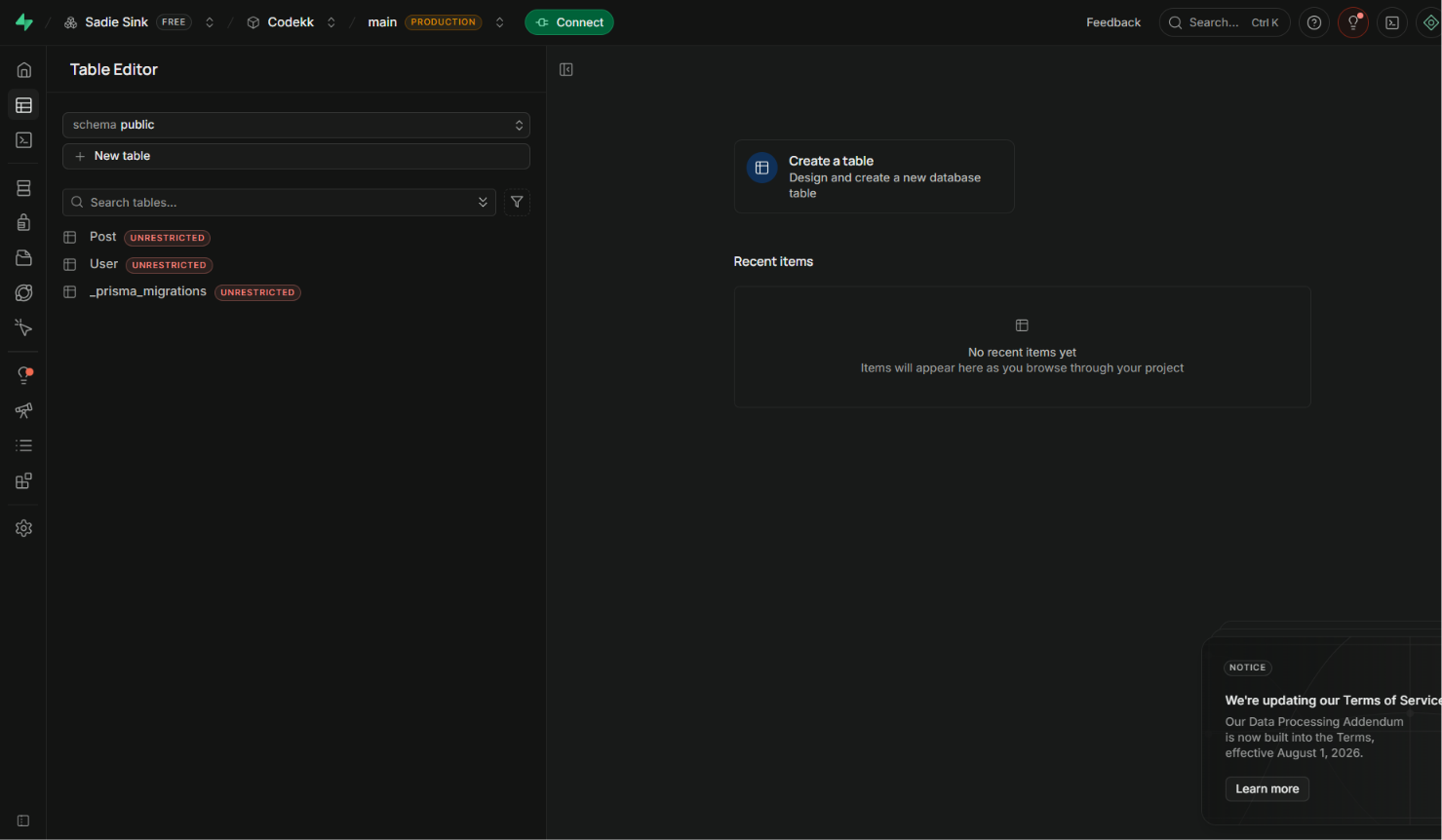
Option 2 - Use Prisma Studio
Prisma comes with a built-in GUI for browsing your database. Run:
npx prisma studio
It opens at http://localhost:5555 (or similar port) and shows you all your tables and data in a clean interface - no need to open Supabase at all.
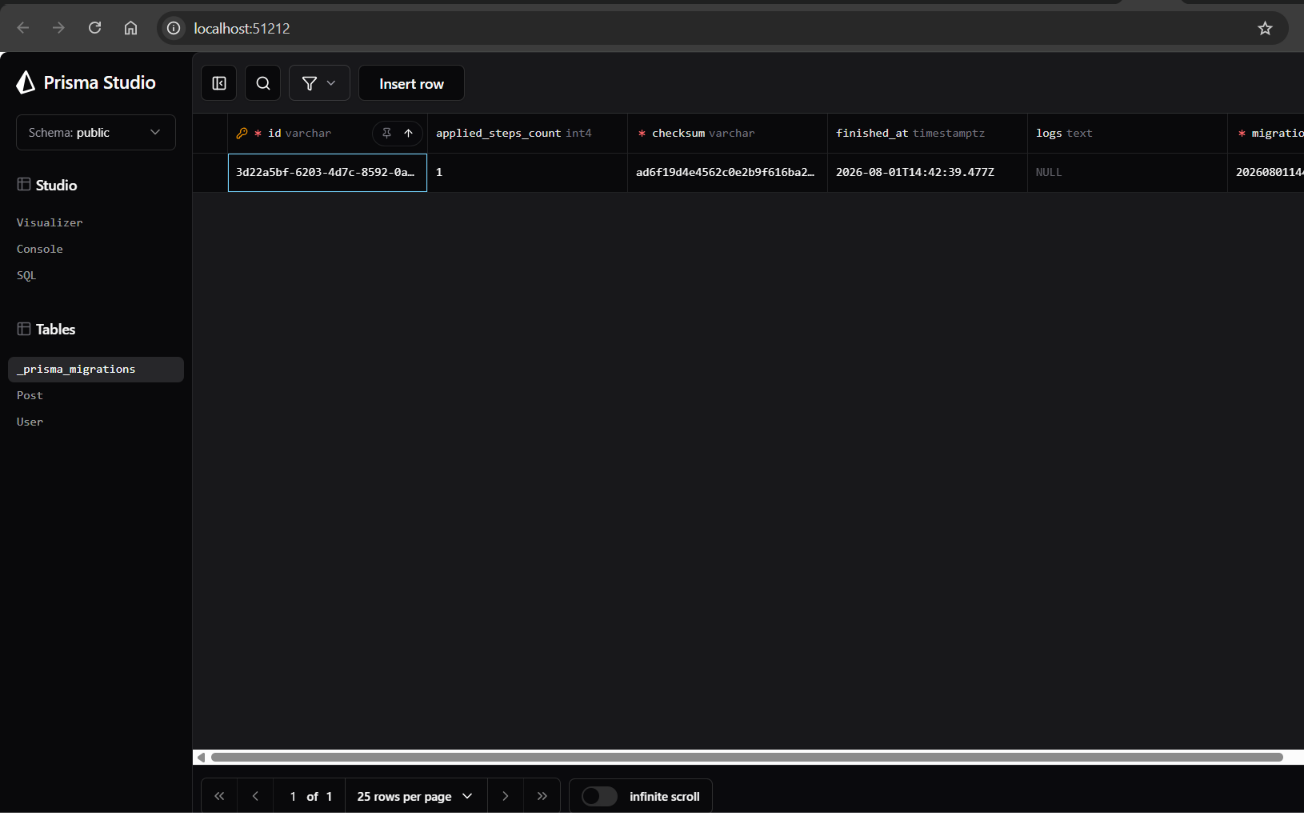
Using Prisma in Your Next.js Code
Now that everything is connected, here is how you actually query your database in a Next.js Server Component:
import { PrismaClient } from "../generated/prisma/client";
import { PrismaPg } from "@prisma/adapter-pg";

const adapter = new PrismaPg({
  connectionString: process.env.DATABASE_URL,
});

const prisma = new PrismaClient({ adapter });

export default async function UsersPage() {
  const users = await prisma.user.findMany({
    include: {
      posts: true, // include related posts
    },
  });

  return (
    <div>
      {users.map(user => (
        <div key={user.id}>
          <h2>{user.name}</h2>
          <p>{user.email}</p>
          <p>{user.posts.length} posts</p>
        </div>
      ))}
    </div>
  );
}
Because this is a Server Component, the database query runs on the server before the page reaches the browser. No API route needed, no fetch call, no exposed credentials. Prisma handles the SQL, TypeScript handles the types, Next.js handles the rendering.
One important note for production: Create a single Prisma client instance and reuse it across your app instead of creating a new one in every file. A common pattern is to create a lib/prisma.ts file that exports a single instance. This prevents connection pool exhaustion in a serverless environment like Vercel.
// lib/prisma.ts
import { PrismaClient } from "../app/generated/prisma/client";
import { PrismaPg } from "@prisma/adapter-pg";
import "dotenv/config";

const adapter = new PrismaPg({
  connectionString: process.env.DATABASE_URL,
});

const globalForPrisma = globalThis as unknown as {
  prisma: PrismaClient | undefined;
};

export const prisma =
  globalForPrisma.prisma ?? new PrismaClient({ adapter });

if (process.env.NODE_ENV !== "production") {
  globalForPrisma.prisma = prisma;
}
Import prisma from this file wherever you need it.
What You Have Now
At this point your setup is complete:
Supabase is hosting your PostgreSQL database
Prisma is managing your schema, migrations, and queries
Your Next.js app can query the database directly from Server Components
Your data is type-safe end to end - if your schema changes, TypeScript will catch anywhere your code breaks immediately
This is a solid foundation. From here you can add more models to your schema, write more complex queries using Prisma's API, or add API routes that use the same Prisma client for client-side data fetching.
Related Articles
More insights you might enjoy

SSR, CSR, SSG, and ISR in Next.js - What They Are and When to Use Each One
Next.js gives you four ways to render pages and each solves a different problem. This guide explains all four with real code examples and a practical decision guide.
Async/Await in JavaScript - How It Actually Works and Why It Exists
How async/await works in JavaScript - async functions, await, error handling, parallel vs sequential execution, and the most common mistakes explained.

How to Build an Active Link Indicator in Next.js - Navbar and Sidebar
Learn how to build an active link indicator in Next.js using usePathname - works for both navbar and sidebar with clean Tailwind CSS styling.

React vs Next.js: What's Actually Different and When to Use Which
React and Next.js are often confused - one is a UI library, the other is a full framework built on top of it. This post breaks down the real differences: rendering strategies, routing, API routes, and when to pick one over the other.

TypeScript vs JavaScript - What Is Actually Different and Should You Learn TypeScript
TypeScript and JavaScript are more related than most people think. This guide covers the real difference, core TypeScript features you need to know, and helps you decide whether to make the switch.

PostgreSQL vs MongoDB - How to Choose the Right Database for Your Project
PostgreSQL and MongoDB are fundamentally different databases. This guide explains how each works, how they handle relationships, schema, and transactions - so you can make the right choice instead of just going with whatever a tutorial used.
Comments
Sign in to join the conversation