


50+ Basic Linux Commands Every Developer Should Know
You don't need to memorize a man page to be productive in the terminal. This blog walks through the commands you'll actually reach for every day, then builds out into a full reference covering processes, networking, permissions, and more, all with real examples you can run yourself.
Why bother with the terminal at all?
Every developer eventually ends up staring at a blinking cursor in a black window, whether it's to install a package, check why a server won't start, or SSH into a machine that doesn't have a GUI at all. You can avoid the terminal for a while, but not forever. Deploying an app, setting up a dev environment, debugging a process that's hogging memory, none of that happens through a nice interface, it happens through commands.
The good news is that you don't need to memorize hundreds of flags to be productive. A working set of maybe 15 commands covers most of what you'll do day to day, and everything past that is stuff you look up when you actually need it, the same way you'd look up a library's API. This blog is split into two parts: the essentials you should genuinely know by heart, and a broader reference you can come back to whenever you need something specific.
Part 1: The Essentials Every Developer Should Know
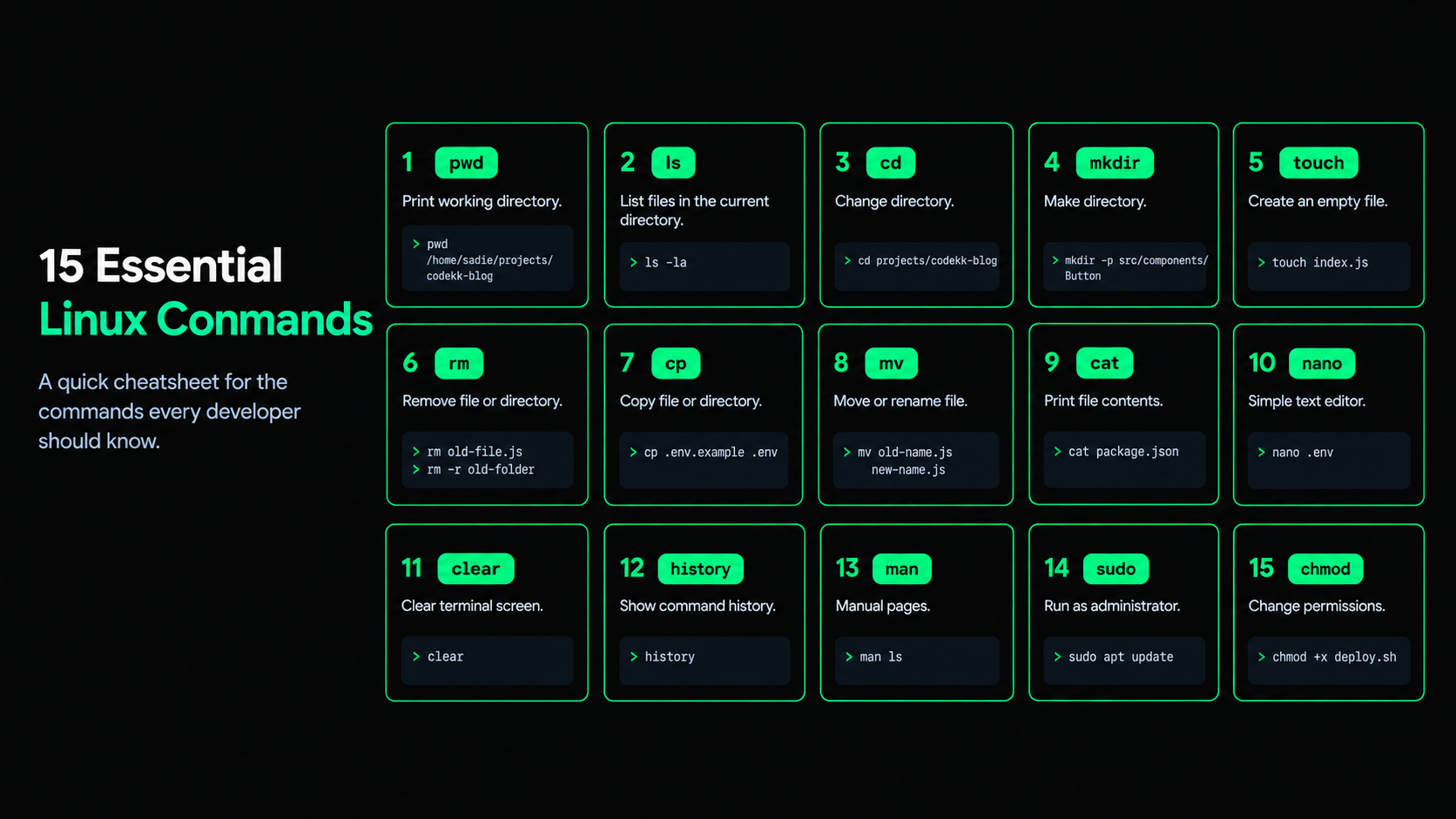
These are the commands you'll type without thinking about it once they're second nature. If you only learn 15 things from this blog, make it these.
1. pwd - print working directory
Tells you exactly where you are in the file system right now. Useful the moment you feel lost after a few cd commands.
bash
pwd
# /home/sadie/projects/codekk-blog
2. ls - list files
Shows you what's inside the current folder. Add -l for a detailed list with permissions and sizes, and -a to also show hidden files (the ones starting with a dot).
bash
ls -la3. cd - change directory
Moves you into a different folder. cd .. goes up one level, cd ~ takes you home, and cd - jumps back to wherever you just were.
bash
cd projects/codekk-blog4. mkdir - make directory
Creates a new folder. Add -p if you want to create nested folders in one go, even if the parent folders don't exist yet.
bash
mkdir -p src/components/Button5. touch - create an empty file
Creates a new, empty file instantly. Developers use this constantly to scaffold files before writing anything into them.
bash
touch index.js6. rm - remove
Deletes a file. Add -r to delete a folder and everything inside it, and be careful, there's no trash bin here, it's gone.
bash
rm old-file.js
rm -r old-folder
7. cp - copy
Copies a file or folder from one place to another. Add -r when copying folders.
bash
cp .env.example .env8. mv - move (and rename)
Moves a file, or renames it if the destination is in the same folder. There's no separate "rename" command in Linux, mv does both jobs.
bash
mv old-name.js new-name.js9. cat - print file contents
Dumps the entire contents of a file straight into your terminal. Great for short files, not great for anything hundreds of lines long.
bash
cat package.json10. nano - a simple text editor
Opens a file for editing directly in the terminal. nano is the friendliest option for beginners, Ctrl + O saves, Ctrl + X exits.
bash
nano .env11. clear
Wipes your terminal screen so you're not scrolling through a wall of old output. Doesn't undo anything, it's purely visual.
bash
clear12. history
Shows you a list of every command you've typed recently in this shell. Genuinely useful when you know you ran the right command five minutes ago and can't remember what it was.
bash
history13. man - manual pages
The built-in documentation for almost every command. If you're not sure what a flag does, this is where you check before guessing.
bash
man ls14. sudo - run as administrator
Runs a command with elevated permissions. You'll need this for anything that touches system-level files or installs software system-wide. Use it deliberately, not by habit, since it can genuinely break things if misused.
bash
sudo apt update15. chmod - change permissions
Changes what a file is allowed to do, read, write, or execute, and for whom. You'll run into this the first time you try to run a shell script and get a "permission denied" error.
bash
chmod +x deploy.sh[IMAGE: A simple cheatsheet-style graphic showing the 15 essential commands grouped visually, placed right after this essentials section, before the broader reference begins]
Part 2: The Broader Reference
Once the essentials feel automatic, these are the commands you'll reach for depending on what you're actually doing. You don't need to memorize this section, just know it exists so you know what to search for later.
Viewing and reading files
Command | Example | What it does |
|---|---|---|
|
| Opens a file for scrollable reading without loading the whole thing at once, good for large files |
|
| An older, simpler version of |
|
| Shows the first N lines of a file, default is 10 |
|
| Shows the last N lines, and with |
|
| A more powerful terminal text editor with a steeper learning curve than nano, worth learning eventually |
Searching and processing text
Command | Example | What it does |
|---|---|---|
|
| Searches for a pattern inside a file or output, one of the most-used commands on this whole list |
|
| Searches for files and folders by name, type, or other conditions, starting from a given path |
|
| Processes text column by column, useful for pulling specific fields out of structured output |
|
| Finds and replaces text in a file directly from the command line |
|
| Sorts the lines of a file or input alphabetically or numerically |
|
| Removes duplicate adjacent lines, usually paired with |
|
| Counts lines, words, or characters in a file, |
File permissions and ownership
Command | Example | What it does |
|---|---|---|
|
| Changes who owns a file |
|
| Changes which group owns a file |
|
| Sets the default permissions new files get when created |
[IMAGE: A visual breakdown of a "ls -l" output line, showing what each character in the permission string means (owner, group, others, read/write/execute), placed right after the permissions table above]
Process management
Command | Example | What it does |
|---|---|---|
|
| Lists currently running processes, |
|
| Shows a live, updating view of running processes and resource usage |
|
| A more readable, color-coded version of |
|
| Stops a process using its process ID (found via |
|
| Stops all processes matching a name, useful when a dev server won't die normally |
|
| Lists background jobs running in your current terminal session |
|
| Runs a command with a lower priority so it doesn't hog system resources |
Networking
Command | Example | What it does |
|---|---|---|
|
| Checks whether a host is reachable and how long the round trip takes |
|
| Sends an HTTP request from the terminal, extremely common for testing APIs |
|
| Downloads a file directly from a URL |
|
| Connects to a remote machine's terminal over a secure connection |
|
| Copies files to or from a remote machine over SSH |
|
| Shows active network connections and which ports are in use |
|
| Shows network interface information, the modern replacement for |
Disk and system info
Command | Example | What it does |
|---|---|---|
|
| Shows disk space usage for all mounted drives, |
|
| Shows how much space a specific folder is taking up |
|
| Shows system information, kernel version, architecture, and more |
|
| Prints the username you're currently logged in as |
|
| Shows how long the system has been running since its last restart |
|
| Shows how much RAM is being used and how much is free |
Archiving and compression
Command | Example | What it does |
|---|---|---|
|
| Bundles files into a single archive, |
|
| Creates a |
|
| Extracts a |
|
| Compresses a single file, replacing it with a |
Package management (Debian/Ubuntu based systems)
Command | Example | What it does |
|---|---|---|
|
| Refreshes the list of available packages and their versions |
|
| Installs a new package |
|
| Uninstalls a package |
Shell operators worth knowing
These aren't standalone commands, but you'll use them constantly alongside everything above.
Operator | Example | What it does |
|---|---|---|
|
| Pipes the output of one command into another as input |
|
| Redirects output into a file, overwriting whatever was there |
|
| Redirects output into a file, appending instead of overwriting |
|
| Runs the second command only if the first one succeeds |
|
| Creates a shortcut for a longer command |
A quick example putting a few of these together
Say you want to find every error in a log file, count how many there are, and save the result to a new file. You don't need a script for this, one line does it:
bash
grep "ERROR" server.log | wc -l > error-count.txtThis pipes grep's output into wc -l to count the lines, then redirects that count into a new file. That's the actual power of the terminal, small commands that do one thing well, chained together to do something more specific. If you've set up a Node.js and Express server before, you'll recognize this exact workflow from tailing logs while debugging a route that keeps failing, something covered in more depth in
What to actually take away from this
You don't need to know all 50-plus of these by heart. Learn the first 15 properly, they'll cover almost everything you do on a normal day. Everything after that is a reference you come back to, the same way you'd look up a specific method in a library's docs instead of memorizing the whole thing upfront. The terminal stops being intimidating pretty fast once you realize it's just a small set of tools, used together, over and over again.
Related Articles
More insights you might enjoy

JavaScript Closures - The Concept Interviewers Actually Test
Closures are one of the most asked-about JavaScript concepts in interviews, and also one of the most misunderstood. This blog explains what a closure actually is, why functions can remember variables from outside their own scope, and where closures show up in real code

Higher-Order Functions in JavaScript
Higher-order functions are one of the most important ideas in JavaScript, and you're probably already using them without realizing it. This blog explains what makes a function "higher-order," why they matter, and how methods like map, filter, and setTimeout all rely on this same simple idea.

How the 'this' Keyword Works in JavaScript
The 'this' keyword confuses almost every JavaScript developer at some point because its value depends on how a function is called, not where it's written. This blog breaks down 'this' in every context - global scope, object methods, arrow functions, classes, and event handlers

JavaScript Hoisting Explained (With Simple Examples)
Hoisting is one of the first JavaScript concepts that confuses beginners, because it makes code behave in ways that don't match how it looks. This blog breaks down what hoisting actually is, how var, let, and const behave differently, and why you sometimes get "undefined" instead of an error

HTTP vs HTTPS: How HTTPS Actually Keeps Your Data Safe
HTTP and HTTPS look almost identical, just one letter apart, but the difference between them matters a lot - for security, for user trust, and even for SEO. This blog explains what each one actually does, how HTTPS keeps your data safe using encryption, and what happens behind the scenes
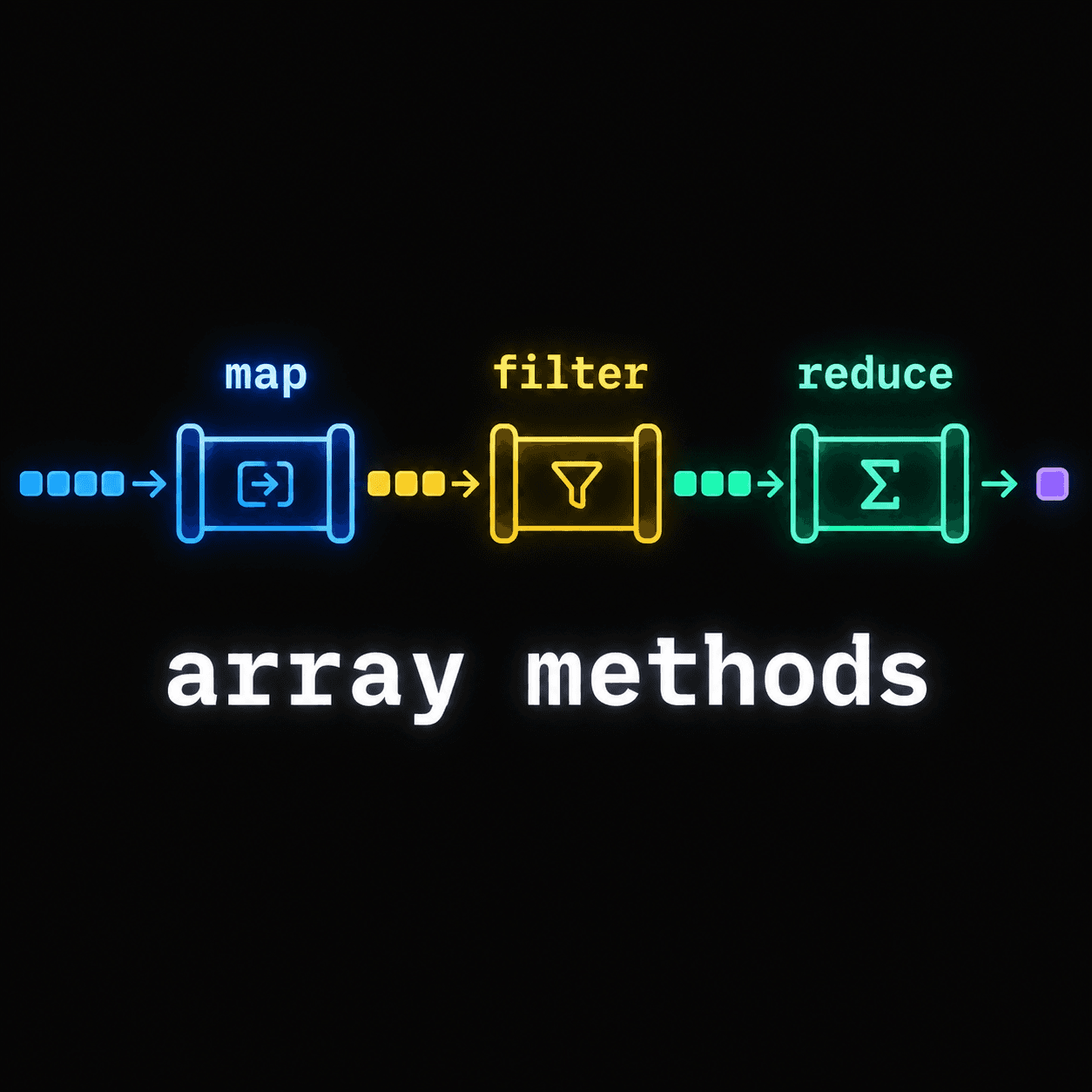
JavaScript Array Methods Explained (map, filter, reduce)
map, filter, and reduce are three of the most useful array methods in JavaScript, but beginners often mix them up or reach for the wrong one. This blog explains what each method actually does, walks through simple real-world examples, and shows the common mistakes that trip people up when they're ju
Comments
Sign in to join the conversation